




In this article we will explore what a symlink is, how to use it, and the best practices for systems architecture. Those with a *nix background are likely familiar with symlinks, but the average Windows user may have no idea what they are.
By the way, have you heard before about symlinks? Do you used them? Or is this the first article you’ve read about this topic?
Whatever your answer is, I want to point out that here you will read comprehensive information about symlinks.
Thank you for your time! Let’s dive into the subject stept by step!
What Is A Symlink?
What is a symlink? A symlink (short for symbolic link) is a special type of file that points to another file or directory on your system.
Some think about a symlink like a shortcut. A Windows user is more comfortably with the analogy of a shortcut: you create a new file that points to the original file.
However, even if a symlink behaves like a shortcut, it’s not a natural shortcut.
It’s more accurate to say that a symlink is a shortcut that works at the system level, whereas a standard Windows shortcut is just a “helper file” for the user interface.
Remember: shortcuts are for people; symlinks are for programs.
Practically, a symlink is a file-system level object that contains a text string representing a path to another file or folder.
When you try to access a symlink, the operating system intercepts the request, it sees that the file is actually a link, reads the path inside it, and immediately redirects the operation to the target.
We can say that the symlink is the actual file.
A symlink takes up almost zero space (few bytes).
It’s good to know that in Linux systems, a symlink always has 777 permissions (full read, write and execute).
Regarding those 777 permissions, you should be aware that, in some cases, they can be an illusion. Why and how? In Linux, the permission bits on a symlink are ignored by the operating system.
The kernel doesn’t waste time checking if you have permission to read the link itself; instead, your access is strictly governed by the target file. For example, if a symlink appears as 777, but it points to a file with 400 permissions (read-only for the owner), you will be restricted by the target’s read-only status.
How do you like it so far? Easy or hard? Speaking of hard, a symlink “arch-rival” is the hard link. Literally…
Symlink vs. Hard Link
In a filesystem, let’s say that a file is composed of two parts:
- The Data: the actual content sitting on the disk.
- The Inode: an index number that contains metadata and points to where that data is physically located.
Now, a hard link is essentially a second name for the same inode. It’s like having one person who is known as “Robert” at work and “Roby” at home. Both names refer to the exact same human being.
Keep in mind the following attributes of a hard link:
- Both filenames point to the exact same inode number.
- If you delete the original file, the hard link still works because the data stays on the disk as long as at least one name points to it.
- Cannot link to directories (to prevent infinite loops).
- Cannot cross different partitions of drives (since inode numbers are unique only to their specific disk).
Imagine you have two different bookmarks in your browser with different names, one called “Project Alfa” and one called “The First One”. Both of them lead to the same URL. If you delete the “Project Alfa” bookmark, you can still get it through “The First One” link.
For *nix users, it’s good to know that a file exists if it has at least one link to it (at least one link pointing to its inode), otherwise, the file can no longer be found on the system.
A symlink is a special file that contains a text string which includes the path to another file.
Keep in mind the following attributes of a symlink:
- Has its own inode and own data.
- Its data is just the address of the target file.
- If you move or delete the original file, the symlink breaks (it becomes a “dangling link” pointing to a “ghost”).
- Can link to directories.
- Can points to files on different hard drives or over a network.
Imagine a friend tells you to go to 733 Sym Street to buy some ice cream. You have a piece of paper with the address. You go there, but there is no ice cream shop or truck. The piece of paper still says “733 Sym Street”, but when you arrive, there’s nothing. If the ice cream truck moves to a different place, you still have that piece of paper with the address, but the truck isn’t there anymore. Does it make sense? Maybe I need a new analogy…
Now it’s time to compare a symlink with a hard link. Let’s compare them step by step:
- A symlink is a shortcut or a pointer to a path, while a hard link is a second name for the same data.
- A symlink has a unique inode, but a hard link shares the same inode as the original file.
- A symlink breaks if you delete the original file, while a hard link still works.
- A smylink can link to directories, but a hard link can link only to files.
In Linux, the commands for creating a symlink and a hard link are the following (you don’t have to be a root user):
- Symlink: ln -s [TARGET] [LINK_NAME]
- Hard link: ln [TARGET] [LINK_NAME]
That -s flag or option stands for “symbolic”. When you create a symlink, you need to put that option.
In Windows, the commands for creating a symlink and a hard link depend on whether you are using the traditional Command Prompt (CMD) or PowerShell.
- Command Prompt (CMD):
- Symlink file: mklink [LINK_NAME] [TARGET]
- Symlink folder: mklink /D [LINK_NAME] [TARGET]
- Hard link: mklink /H [LINK_NAME] [TARGET]
- PowerShell:
- Symlink: New-Item -ItemType SymbolicLink -Path [LINK_NAME] -Value [TARGET]
- Hard link: new-Item -ItemType HardLink -Path [LINK_NAME] -Value [TARGET]
For symlinks, by default, Windows requires administrator rights to create symbolic links. For hard links, you usually don’t need administrator rights.
The mklink command for Windows was introduced by Windows Vista in 2007. Good times…
Before I move to the next chapter, I want to write a remark (a remarkable one): in Linux, every file has a hard link; without at least one link, you’d have no way to find the data!
Symlinks: Practical Usage
Let’s create a symlink in Linux, then in Windows (by CMD).
I don’t have right now a Linux environment, so I’ll be using the terminal from tutorialspoint.com.
Before I’ll create the symlink, I use the following commands:
- Create a new folder: mkdir NewFolder
- Enter in that new folder: cd NewFolder
- Create the target file: touch TargetFile.txt
- Populate that target file: echo “One statement” > TargetFile.txt
- Create a symlink: ln -s TargetFile.txt SymlinkFile.txt
- List both files: ls -l
Here is a screenshot with all the above commands:
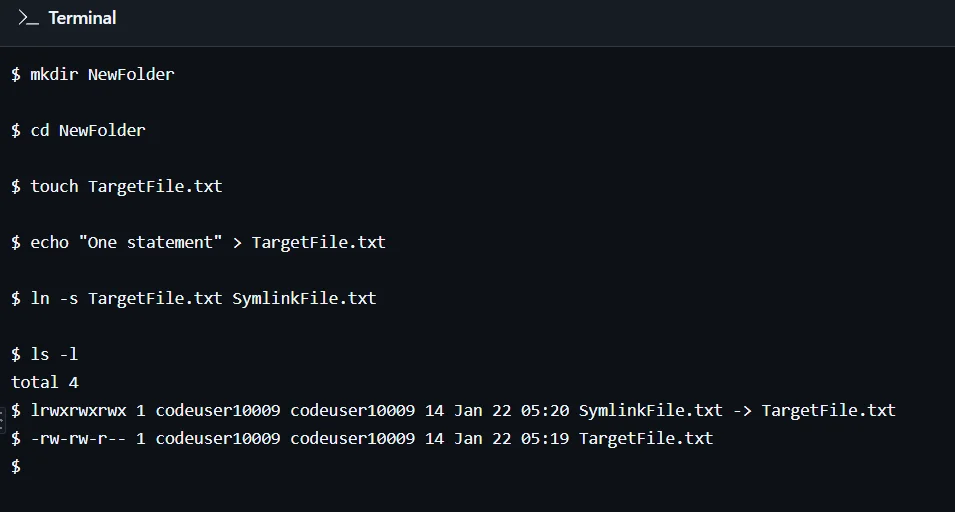
Have you noticed that the symlink has 777 permissions? Of course is a little bit an illusion, because the kernel ignores them and only cares about the permissions of the target file it points to.
Do you have knowledge about permissions, what they are, what the number are representing?
Let’s take the permissions from TargetFile.txt:
- -rw-rw-r–
That string should be divided as follows:
- First character: – means that the file is a regular one.
- Owner (u): the person who created the file 👉 first three letters (#green): –rw-rw-r– (r = read; w = write; – = is for execution, but it’s missing).
- Group (g): a collection of users 👉 the next three letters (#green): -rw-rw-r– (r = read; w = write; – = for execution, but again it’s missing).
- Others (o): everyone else on the system 👉 the last three letters (#green): -rw-rw-r– (r = read; – = for writing – missing; – = for execution – missing).
There is a corresponding number for each letter:
- r (read) = 4
- w (write) = 2
- x (execute) = 1
- – (no permission) = 0
That dash – for no permission must be inside a group of a three letters, not at the beginning.
To get a single digit for a triplet, you just add them up.
Let’s calculate the permissions for TargetFile.txt:
- Owner (#green): –rw-rw-r– 👉 4 + 2 + 0 = 6
- Group (#green): -rw-rw-r– 👉 4 + 2 + 0 = 6
- Others (#green): -rw-rw-r– 👉 4 + 0 + 0 = 4
So, the permissions for TargetFile.txt are 644. Interesting, right?
Now let’s calculate the permissions for SymlinkFile.txt: lrwxrwxrwx
- First, let’s clarify the first letter: “l” stands for “symbolic link” and means that there is a shortcut. The other possible letters from the beginning of a file are:
- – 👉 regular file
- d 👉 folder (directory)
- c 👉 character device
- b 👉 block device
- s 👉 socket
- p 👉 named pipe
- Owner (#green): lrwxrwxrwx ⇒ 4 + 2 + 1 = 7
- Group (#green): lrwxrwxrwx ⇒ 4 + 2 + 1 = 7
- Others (#green): lrwxrwxrwx ⇒ 4 + 2 + 1 = 7
The result is 777.
In Windows, even if you run the CMD as an administrator, the permissions for a symlink remain the same as the original file.
Let’s create a symlink in Windows CMD.
Before that, I’ll use the previous commands:
- Create a new folder: mkdir Symlink
- Enter in that new folder: cd Symlink
- Create the target file and also write something inside: echo “The first sentence of the file” > file.txt
- Create a symlink: mklink symlink.txt file.txt
- List both files: ls -l
Here is a screenshot with the results:
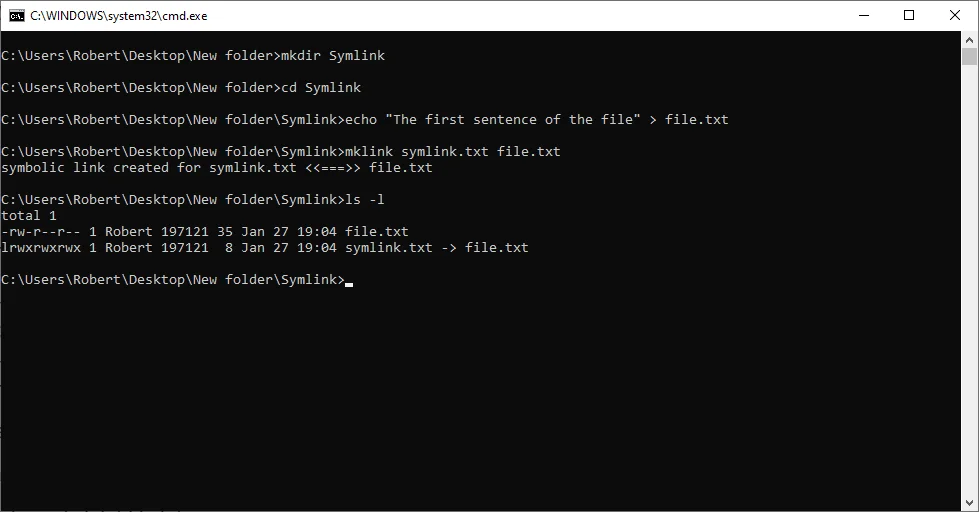
I didn’t need admin rights because I have the Developer Mode on. You can check it for yourself in this way: Settings 👉 Update & Security 👉 For developers 👉 Developer Mode.
Learn & Grow
As a recap, what is a symlink? A symlink is a file that points to a file or directory (#folder).
I know that I wrote a lot of technical details and I missed (somehow) the reasons why to use a symlink in your workflow (not only if you are a programmer).
What are the reasons to use a symlink? Is it worth it?
Symlinks solve very specific problems, such as:
- Saving space by avoiding data duplication.
- Organizing scattered files.
- Software versioning & web development (for software versioning, you can check this article: “CSS Cache Busting“).
The only real downside is that if you delete the target, the symlink remains like a “ghost” – a pointer to nowhere.
That being said, a symlink is an intelligent way to navigate and organize your system.
Be wise enough to make your work easy and fun or fun and easy!
“Good is good when it’s well done.”
✍ Horja Robert Emanuel
Digital Ecosystems Orchestrator